Learn Drawing
Rstream LabsArt & Design
4.6535.00 Reviews
- Version
- Varies With Device
- Installs
- 1.00M
- Age Rating
- Everyone
Screenshots
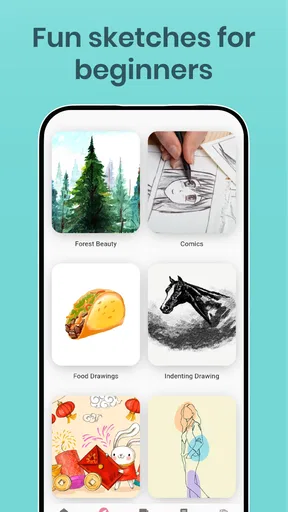
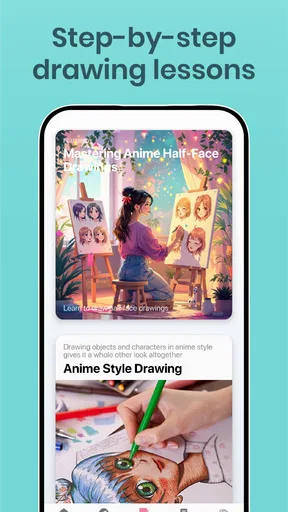
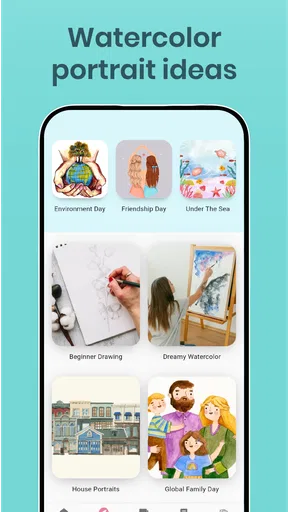

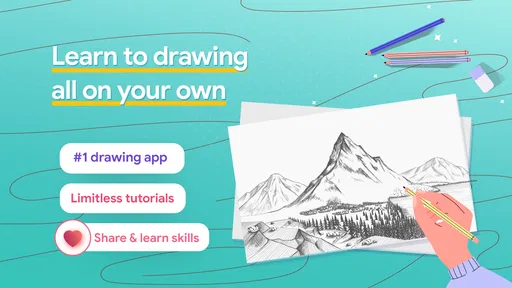
Our Review of Learn Drawing
 Analysis by Appyee
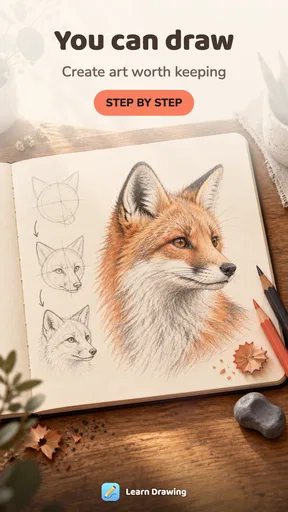
I enjoy drawing apps most when they remove the fear of the blank page. Learn Drawing takes that approach with guided lessons that break a picture into manageable steps, making it easier to start even if your last serious sketch was years ago. I found it most useful as a calm practice tool rather than a complete digital art studio: it encourages observation, repetition, and patience instead of trying to replace a professional illustration program.
That distinction matters. This is an Art & Design app from Rstream Labs, offered free to install for Everyone, with optional in-app purchases ranging from $0.49 to $99.99 per item. Its store summary focuses on creating a summer card through step-by-step drawing lessons, but the practical appeal is broader: it gives beginners a clear sequence to follow when they want to draw something recognizable without first learning every art principle.
How the current experience feels
I find the experience works best when I treat a lesson as a shared activity rather than handing over a device and expecting the app to teach by itself. I can follow the stages alongside a child or another beginner, offering help with tricky shapes while letting them make the marks. That makes the drawing feel collaborative, and it sets up a practical question for shared devices: how to keep each person’s practice comfortable and distinct.
A gentle starting point for people who need structure
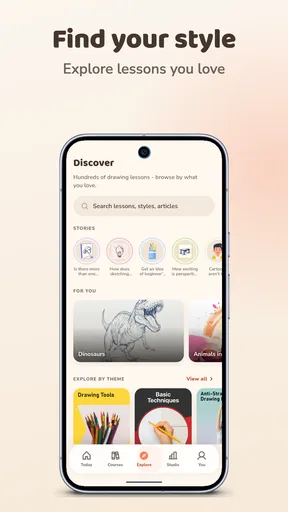
When I open an app like this, I want to know what to do in the first minute. Learn Drawing succeeds because its central idea is immediately understandable: choose a lesson, follow the stages, and build the image gradually. That is less intimidating than opening a blank canvas with a brush panel, color picker, layers, opacity controls, and no indication of where to begin.
The step-by-step format is particularly helpful for children, casual learners, and adults who believe they are “bad at drawing.” Instead of asking me to judge proportions at the beginning, it gives me a visual order of operations. I can concentrate on one shape, line, or detail at a time. That small reduction in decision-making is the app’s strongest quality.
I would not describe the experience as a substitute for learning to draw from life. Guided copying can improve confidence and hand control, but it does not automatically teach perspective, anatomy, lighting, or composition. I still need separate practice if I want to design original characters, sketch rooms, or develop a personal style. Learn Drawing is better understood as a friendly bridge between interest and regular practice.
Where it fits in a normal day
A realistic use case is a short evening session with a child who wants to make a card for a birthday or holiday. Rather than searching through long video tutorials, we can sit together, follow one stage, pause, and compare the result before continuing. The same workflow works for an adult waiting for an appointment or taking a break from work: a small guided drawing offers a focused activity without demanding a full art setup.
For the best result, I recommend using a pencil and paper beside the device if the goal is to improve hand-drawn skills. The screen can show the next stage while the paper preserves the natural feel of drawing. If the app is being used purely for digital practice, a larger phone or tablet is more comfortable than a small display because fine lines and reference shapes are easier to inspect.
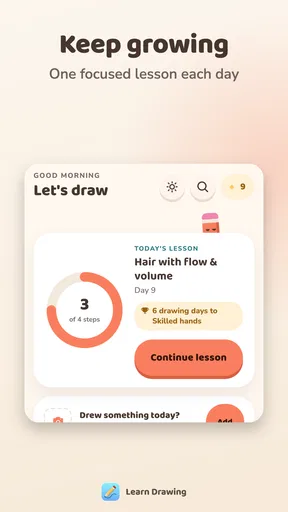
One useful habit is to avoid rushing through the lesson simply because the next step is visible. I get more value by pausing after each stage and asking what changed: did the shape become wider, did a line move closer to the edge, or did a small detail establish the subject? That turns the app from a tracing aid into an observation exercise.
What the developer’s approach gets right
Rstream Labs has kept the main promise focused. The app is not trying to be a social feed, a photo editor, and a professional drawing workstation at the same time. That narrow purpose makes it approachable. The average rating of 4.6 from around 29 thousand ratings and more than a million installs also suggests that the simple lesson-based concept connects with a substantial audience, although popularity alone does not tell me whether it suits an experienced artist.
The product has been available since January 2019, giving it a longer presence than a newly launched experiment. For an existing user, that matters mainly because the app’s identity is already clear: it is built around learning through guided examples. I would rather see that focus maintained than have the experience become overloaded with advanced tools that beginners rarely use.
What has changed, and what that means in practice
The confirmed release history establishes that Learn Drawing has been available since January 9, 2019, but it does not provide a detailed public change log that I can use to describe specific feature updates responsibly. I therefore would not claim that a particular brush engine, lesson library, interface redesign, or export tool was added in a certain release. The safer conclusion is that the app’s current value still rests on its guided-learning format rather than on a documented list of technical milestones.
That may sound cautious, but it is useful for anyone deciding whether to install it. If you are choosing an app because you need a known file format, sophisticated layer management, pressure-sensitive brush behavior, or a precise revision history, this is not the kind of product I would select on the basis of its release date alone. If you want an accessible drawing lesson and are comfortable evaluating the current experience directly, its established availability is more reassuring.
Existing users should also keep their expectations practical. A long-running beginner app can remain valuable without turning into a professional tool. The important question is not whether it has accumulated every feature found in larger creative suites; it is whether the instructions remain clear, the pacing remains manageable, and the lessons still help a learner complete a drawing. Those are the areas I would judge first after an update.
How to get more from each lesson
My favorite workflow is a three-pass method. On the first pass, I follow the instructions without worrying about beauty. On the second, I repeat the same subject while paying attention to proportion and spacing. On the third, I change one controlled element, such as the expression, decoration, or surrounding background. This keeps the lesson recognizable while beginning to move beyond simple imitation.
Another practical tip is to use the finished example as a checkpoint, not as a demand for perfection. Beginners often compare their early lines with the polished final image and assume they have failed. I find it more productive to compare the overall silhouette first, then the large internal shapes, and only afterward the small details. If the broad structure is right, uneven lines are part of the learning process rather than a reason to abandon the drawing.
The app can also work as a prompt generator. After completing a lesson, I can close the reference and draw the same subject from memory. That exposes which stages I actually understood. If I remember only the final outline, I have copied successfully but learned little; if I can reconstruct the major shapes, I am beginning to internalize the method.
Free access and the purchase question
Because the app is free to install, it is easy to try without committing money at the outset. That is a meaningful advantage for families, occasional hobbyists, and anyone unsure whether guided drawing will hold their attention. The presence of optional purchases, priced from $0.49 to $99.99 per item, means I would review any purchase screen carefully before confirming anything, especially when a child is using the device.
I would not pay simply because I want a more serious art workflow. Purchases may make sense only if they unlock material that directly supports the kind of practice I want and if I have already spent enough time with the free experience to know that the teaching style works for me. A professional artist will usually get better value from a dedicated drawing app, while a beginner should first establish whether regular lessons become a habit.
The free starting point also makes comparison easier. I can test Learn Drawing against a video tutorial, a printed activity book, or a general sketching app without immediately choosing one ecosystem. Video lessons can offer more explanation and personality, but they may move too quickly or require constant pausing. Printed guides are distraction-free, though they do not adapt to the learner. General drawing apps provide more creative freedom, but they often leave beginners unsure what to draw next.
Where the experience falls short
The same structure that makes the app welcoming can limit it later. Step-by-step drawings tell me what to make, but they may not explain why a line belongs in a certain place. Without that reasoning, I can complete several attractive exercises and still struggle when asked to draw an unfamiliar object. Anyone looking for a serious curriculum should pair the app with practice in basic forms, shading, perspective, and drawing from observation.
I also would not choose it for detailed digital artwork. The app’s identity is lesson-led, not studio-led. If my priority is building a large illustration, organizing many layers, importing references, controlling brush texture, or making precise edits, a full-featured alternative is more appropriate. Those tools can feel complicated at first, but they become necessary once the learner’s goals move beyond following a prepared example.
There is a motivational limitation too. Guided lessons are excellent when I have a clear prompt, but they do not necessarily solve the “what should I draw next?” problem forever. After the novelty fades, I need to create my own subjects and set a practice routine. I would treat this app as one part of a drawing habit, not as the entire habit.
Who should use it, and who should skip it
I recommend Learn Drawing to a complete beginner, a parent looking for a simple creative activity, or a casual user who wants a finished-looking sketch without studying a complex interface first. It is also suitable for someone returning to drawing after a long break and needing small wins before attempting independent work.
I would be more selective for teenagers or adults already comfortable with digital art. If you can confidently construct forms, choose brushes, and develop an image from a blank canvas, the guided format may feel restrictive. Likewise, professional illustrators, designers needing production tools, and students seeking a structured theory course should look elsewhere or use this only as a warm-up.
The Everyone age rating supports its broad accessibility, but supervision is still sensible when purchases are available. I would show a younger user how to navigate the lessons, keep expectations relaxed, and make sure the device’s purchase controls are understood. The creative activity is straightforward; the purchasing decision deserves the same attention as it would in any free app with optional paid items.
What I would watch as the product continues
For future development, I would pay attention to whether Rstream Labs keeps the lesson flow clear while giving returning learners more room to grow. The best evolution would not simply add more buttons. It would help users understand construction, offer meaningful ways to repeat a subject, and encourage a gradual move from copying toward personal variations.
I would also look for clearer separation between beginner guidance and optional challenge. A first-time learner benefits from direct steps, while an experienced user may want fewer visual prompts and more freedom. If the app can serve both without making the opening experience confusing, it would become more useful over a longer period.
For now, my recommendation is straightforward: try it if you want a low-pressure introduction to drawing and are happy to learn by following examples. Give yourself several sessions before deciding whether optional purchases are worthwhile, and use the lessons as practice rather than proof of artistic ability. Its real strength is turning “I don’t know where to start” into one small, doable drawing step.
After using it in that way, I see Learn Drawing as a friendly entry point, not an all-purpose art solution. It earns its place on a beginner’s device because the path is clear, the starting cost is low, and the activity can fit into ordinary moments. Just remember that the next stage of improvement will require experimentation beyond the guided page. That is not a failure of the app; it is the point where your own drawing goals begin to outgrow it.
If you decide to install it, I would begin with a simple session, keep paper nearby, repeat one lesson instead of collecting unfinished attempts, and judge progress by improved observation rather than polished lines. For that kind of learner, Learn Drawing is an easy recommendation and a useful first step into the wider world of sketching.
Verdict
Strengths of Learn Drawing
- Simple lessons make drawing approachable for complete beginners.
- Covers basic shapes, lines, shading, and proportions step by step.
- Short practice sessions are convenient for daily learning.
- Useful visual examples help users follow each drawing exercise.
- Can encourage creativity without requiring expensive art supplies.
Limitations of Learn Drawing
- Advanced artists may find the lessons too basic over time.
- Some exercises may feel repetitive during extended practice.
- Progress depends heavily on consistent practice outside the app.
- Instructions may not cover specialized styles or digital drawing tools.
- A small screen can make detailed drawing exercises less comfortable.
Other Releases by Rstream Labs
View All
Learn to Draw Anime by Steps
Art & Design4.6

Skincare and Face Care Routine
Beauty4.4

Keto Recipes : Keto Diet App
Food & Drink4.3

Anime App - Watch Anime Series
Comics4.5
Similar Picks in This Category
View All
Canva: AI Photo & Video Editor
Canva4.8

PENUP – Drawing-sharing SNS
Samsung Electronics Co., Ltd.4.5

Crafto
Kutumb App4.6

Sketchbook
Sketchbook4.1

ibis Paint X
ibis inc.4.5

Adobe Express: AI Photo, Video
Adobe4.6
Frequently Asked Questions
What is Learn Drawing, and who is it designed for?
Learn Drawing is an educational drawing app designed to help beginners develop their artistic skills through guided lessons and practical exercises. It can be useful for children, teenagers, and adults who want to learn basic shapes, proportions, outlines, shading, and simple object or character drawing. The lessons are generally approachable, so users do not need previous professional experience.
Does Learn Drawing require any previous drawing experience?
No, Learn Drawing is mainly aimed at beginners and does not require advanced artistic knowledge. The app typically introduces concepts gradually, starting with simple lines and shapes before moving toward more detailed illustrations. Even users who feel they are not naturally talented can follow the step-by-step approach, practice repeatedly, and improve their control, observation, and confidence over time.
Can I use Learn Drawing without an internet connection?
The availability of offline features may depend on the specific lesson, device, and version of Learn Drawing installed. Some basic content may remain accessible after it has been loaded, while additional tutorials, advertisements, updates, or premium material may require an internet connection. It is best to open the lessons you want to use in advance if you plan to practice while offline.
Is Learn Drawing free to download and use?
Learn Drawing may be available as a free download, but the complete experience can vary depending on the platform and app version. Free access may include selected lessons, advertisements, or optional in-app purchases for extra tutorials and features. Before downloading, users should check the store listing for current pricing, subscription details, advertising information, and any limitations applied to the free version.
What tools or equipment do I need to use Learn Drawing effectively?
You can usually begin with a compatible Android or iOS device and your finger, although a stylus may provide better precision for detailed exercises. A larger screen can make tracing, sketching, and following instructions more comfortable, but it is not essential. For traditional practice, you may also use the app as a guide while drawing with a pencil and paper.
